Visual Phishing Indicators: Logos, Branding, And Design Red Flags

Quick Answer
Visual phishing indicators include fake or distorted logos, inconsistent branding, poor design, unusual colors, spelling mistakes, and mismatched layouts. Checking these visual red flags can help you identify phishing emails and fraudulent websites before sharing sensitive information.
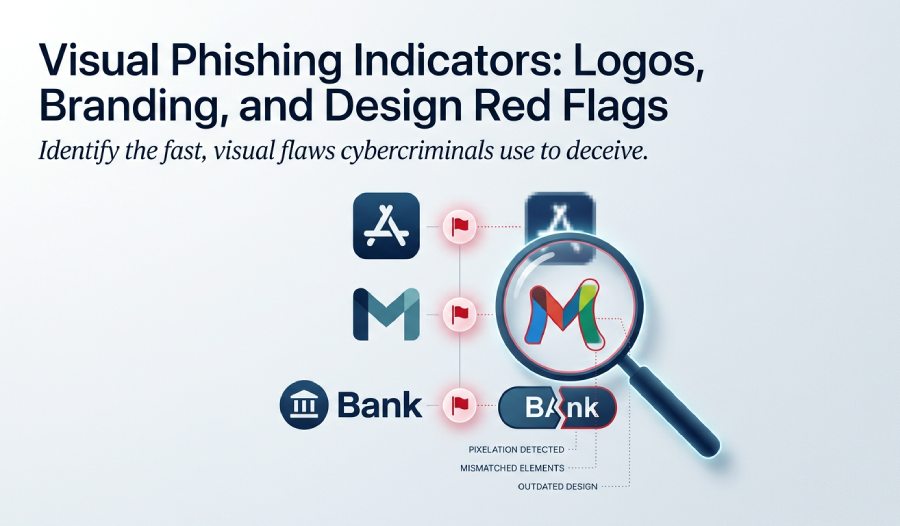
Visual quality is often one of the fastest ways to separate legitimate communication from a phishing email, fake login page, suspicious message, or scam landing page. Cybercriminals rely on spoofing to make their communication look familiar: a bank notice, a Microsoft 365 alert, an Apple ID warning, an Android security prompt, or a delivery notification. The goal of the phishing attack is usually to steal personal information, passwords, account credentials, bank information, credit card numbers, or other identity information that can lead to fraud or identity theft.
Phishing Indicators Are Often Visible Before You Read the Message
Many phishing indicators appear before a user even evaluates the wording. A distorted logo, mismatched email domain, poor spacing, generic greetings, or an odd-looking button can expose a phishing attack quickly. Cybercriminals often copy brand assets from public websites, compress images badly, or use outdated templates. These visual phishing indicators become especially important when the message includes malicious links, suspicious attachments, or an urgent call to action.
In Outlook, Microsoft 365, Teams messages, SMS phishing, and social media direct messages, attackers use psychological tricks to create trust and pressure. They may claim there has been an authentication failure, a payment issue, or an account suspension. They may threaten that your bank information, credit card numbers, passwords, or security credentials will be disabled unless you act immediately.
Visual Trust Should Never Replace Verification
A professional-looking design does not guarantee safety. Modern cybercriminals can create convincing fake websites and polished brand pages. Some use spoofing kits that mimic Microsoft, Office 365, call centers, banks, video games, or credit card company portals. Others combine phishing email design with pharming techniques, redirecting users to malicious sites even when the page looks legitimate.
That is why visual inspection should be treated as the first layer of defense, not the only one. Phishing indicators should prompt verification through trusted channels, such as IT support, an administrator, a trusted advisor, Microsoft Support, your bank, or local law enforcement when fraud is suspected.
Logo Misuse: Blurry Images, Distorted Marks, and Outdated Branding
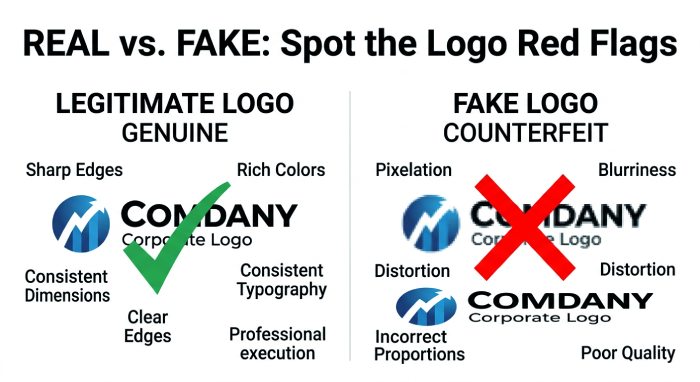
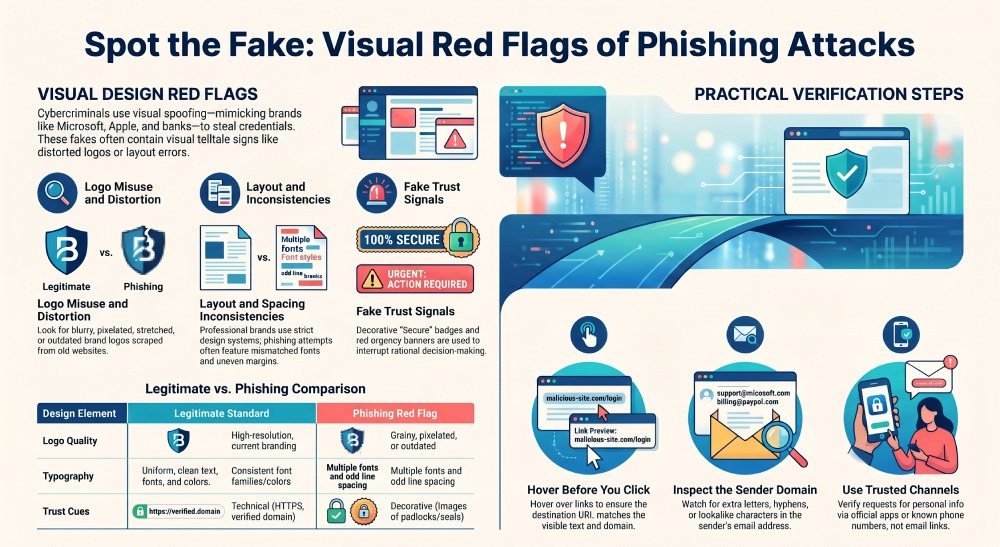
Logo misuse is one of the clearest phishing indicators. Legitimate companies protect their brand systems carefully. Their logos usually appear in high resolution, with correct proportions, current colors, and consistent placement. A phishing email may show a stretched Microsoft logo, a pixelated Apple icon, a distorted bank mark, or a security badge that appears copied from another website.
Blurry or Pixelated Logos
Cybercriminals frequently scrape images from search results, screenshots, or old marketing pages. When those images are inserted into a phishing email, they may look blurry, grainy, or oddly cropped. A phishing attack may also include a logo that loads from an unfamiliar server, which can be another clue that the email domain or sender infrastructure is not legitimate.
If the message claims to come from Microsoft 365 but the branding looks dated, the Outlook notification style appears wrong, or the Microsoft logo is distorted, treat it as a suspicious message. In Microsoft environments, users can report phishing through Outlook, Microsoft 365 reporting tools, or by forwarding suspected messages to phish@office365.microsoft.com, depending on organizational policy.
Outdated or Incorrect Brand Elements
Brands update their visual identities over time. Fraudsters may use old templates because phishing kits circulate for years. A fake websites page may show an old Office 365 interface, outdated security seals, or icons that do not match current Microsoft, Apple, Android, or bank branding. These visual phishing indicators often appear alongside bad grammar, spelling errors, and generic greetings such as “Dear Customer.”
Check Brand Consistency Across the Message
Look at the logo, footer, button style, color palette, and email domain together. A phishing email may show a correct logo but use an email domain that does not match the organization. Mismatched email domains are a major warning sign, especially when the message asks for personal information, passwords, credit card numbers, or bank information.
Design Inconsistencies: Fonts, Colors, Layouts, and Spacing That Feel Off
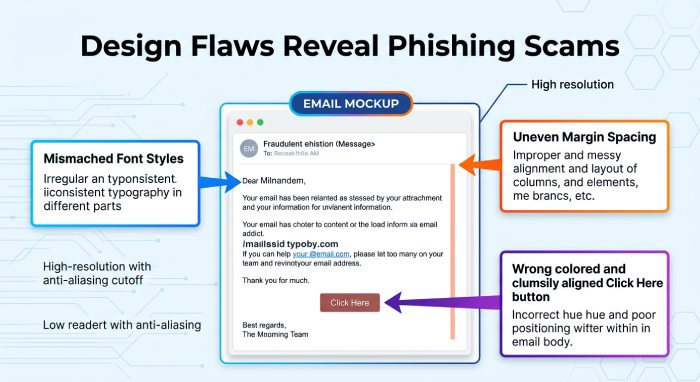
Legitimate companies use design systems. Their emails, landing pages, and account portals usually follow consistent font choices, spacing, alignment, button shapes, and color standards. Cybercriminals often approximate those details, but small inconsistencies can reveal a phishing attack.
Fonts and Layouts That Do Not Match the Brand
A phishing email may combine several fonts, use unusual line spacing, or place logos and buttons awkwardly. A fake Microsoft 365 alert may have inconsistent margins, oversized warning icons, or a button that does not match the familiar Outlook or Teams interface. In Teams messages, attackers may impersonate Teams users or an external sender, using copied profile images and urgent language to push malicious links.
These design flaws are important phishing indicators because cybercriminals prioritize speed and volume. They want users to react before analyzing the communication. Their spoofing attempts often rely on threats, fake deadlines, or claims that multifactor authentication must be reset immediately.
Color and Spacing Problems
Brand colors are rarely random. If a bank email uses slightly wrong blues, strange gradients, or inconsistent button colors, be cautious. If a page requesting credit card numbers or bank information has uneven padding, broken icons, or misaligned form fields, stop and verify. A legitimate payment portal should not feel patched together.
Broken Mobile and Desktop Rendering
Phishing kits often render poorly across devices. A phishing email that looks broken in an email client, a fake login page that displays poorly on Android, or a suspicious message that looks different between desktop and mobile can indicate spoofing. Attackers may test only one format before launching a phishing attack.
Fake Trust Signals: Badges, Security Seals, and Urgency-Driven Visual Cues
Fake trust signals are designed to make users feel safe while cybercriminals collect personal information, passwords, account credentials, credit card numbers, or bank information. These signals may include padlock graphics, “verified” badges, antivirus-style icons, fake Advanced Threat Protection labels, or claims that a message was scanned and approved.
Security Badges Can Be Copied
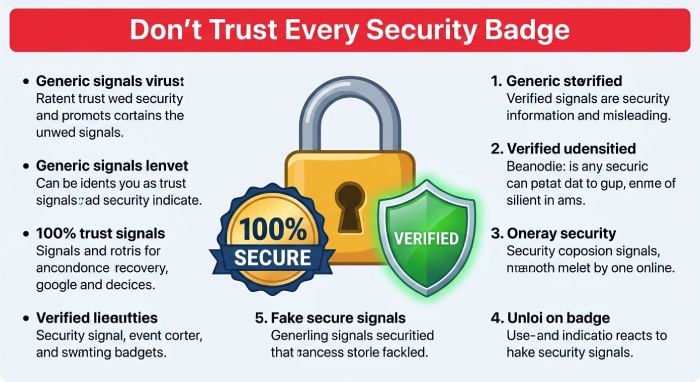
A badge that says “secure,” “encrypted,” or “verified” is not proof. Anyone can paste a seal into a phishing email or fake websites page. Fraudsters may display fake Microsoft Support graphics, fabricated Advanced Threat Protection notices, or copied bank security icons to reduce suspicion. In some fraud schemes, including payment-card abuse patterns discussed by firms such as Unit21, attackers may combine phishing with BIN attacks or other card-testing behavior after stealing credit card numbers.
A real security indicator is technical, not decorative. Email authentication, verified sender infrastructure, HTTPS certificate details, and domain reputation matter more than a graphic. Even then, users should be alert: pharming and advanced spoofing can still mislead victims.
Urgency-Driven Visual Cues
Warning banners, red text, countdown timers, and oversized buttons are common phishing indicators. A phishing attack often uses an urgent call to action such as “Verify now,” “Avoid account closure,” or “Confirm your bank information immediately.” These messages may include threats that your passwords will expire, your account credentials will be deleted, or your credit card numbers must be re-entered to prevent service interruption.
Cybercriminals use these visual cues to interrupt rational decision-making. The communication is designed to move you quickly from fear to action: click, download, sign in, or share personal information.
Practical Verification Steps Before Clicking, Downloading, or Sharing Information
Before clicking links, opening attachments, downloading files, or entering personal information, slow down and verify. A few simple checks can prevent a phishing attack from becoming identity theft, fraud, or a compromised account.
Inspect the Sender and Email Domain
Check the sender name and the email domain carefully. A phishing email may display “Microsoft Support” while the actual email domain is unrelated. Watch for mismatched email domains, extra letters, hyphens, unusual country-code domains, or lookalike characters. Treat messages from an unverified sender or unexpected external sender with caution, especially if they request passwords, bank information, credit card numbers, or security credentials.
In Outlook and Microsoft 365, organizations may label external messages or use Advanced Threat Protection policies to detect spam, malicious links, suspicious attachments, and malicious program delivery attempts. These controls help, but they do not replace user judgment or effective phishing protection practices.
Hover, Confirm, and Report
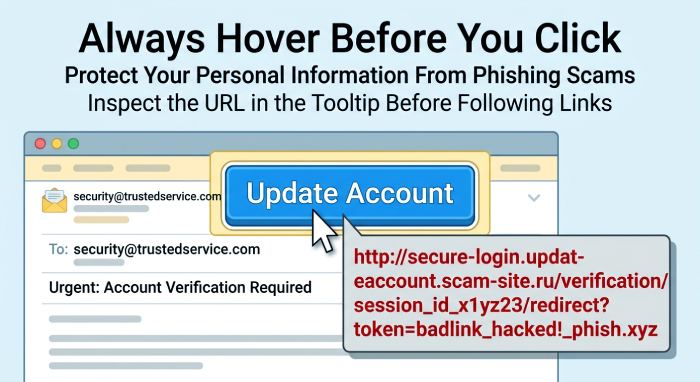
Before clicking, hover over link destinations to see whether the visible text matches the actual URL. If a message claims to come from your bank, type the known website address manually or use the official app. Do not trust links embedded in a suspicious message. In Microsoft Edge, users can report unsafe site behavior when a page appears fraudulent.
Report phishing through your approved channel. In Microsoft 365 or Outlook, use the built-in report phishing feature if enabled by your IT pro or administrator. Some organizations also allow forwarding to phish@office365.microsoft.com. If money was stolen or identity theft occurred, contact your bank, credit card company, local law enforcement, and relevant law enforcement agencies.
Verify Through a Trusted Channel
If a message requests passwords, multifactor authentication resets, account credentials, personal information, bank information, or credit card numbers, contact the organization directly using a known phone number or official website. Ask IT support before opening unexpected attachments or suspicious attachments. For workplace communication, confirm unusual Teams messages with the sender through a separate channel.
Finally, protect accounts with strong passwords, multifactor authentication, and careful communication habits. Cybercriminals succeed when users trust appearances alone; the strongest defense is combining visual awareness, technical verification, and a healthy skepticism toward every unexpected phishing email.
General Manager
General Manager of DuoCircle. Product strategy and commercial lead across DuoCircle's 2,000+ customer base.
LinkedIn Profile →Protect your inbox from phishing attacks
Real-time email security with 60-day free trial. No credit card required.