Office 365 Email Protection For Remote Teams: Security Risks And Controls You’re Missing

Quick Answer
Office 365 email protection for remote teams must go beyond spam filtering. Remote access increases risks like phishing, credential theft, and account takeover. Strong security needs MFA, Conditional Access, Defender for Office 365, Safe Links, Safe Attachments, and continuous monitoring.
The shift to remote work has significantly transformed how organizations safeguard email within Microsoft 365. With employees accessing Office 365 from home networks, personal devices, and various collaboration tools, the scope of potential threats now extends far beyond the conventional office boundaries. Consequently, email security has evolved from merely filtering spam to a comprehensive challenge that encompasses identity management, endpoint protection, and ongoing surveillance throughout the Microsoft 365 ecosystem.
This article delves into the often-ignored vulnerabilities that remote teams pose to Office 365 email security and points out essential protective measures that organizations commonly overlook. Covering issues such as identity-based threats and configuration weaknesses, as well as advanced solutions like Microsoft Defender for Office 365, Safe Links, and Safe Attachments, we clarify what is truly required to effectively secure email in today’s remote work landscape.
Remote Email Risk in Microsoft 365
Why Remote Teams Change the Office 365 Email Threat Model
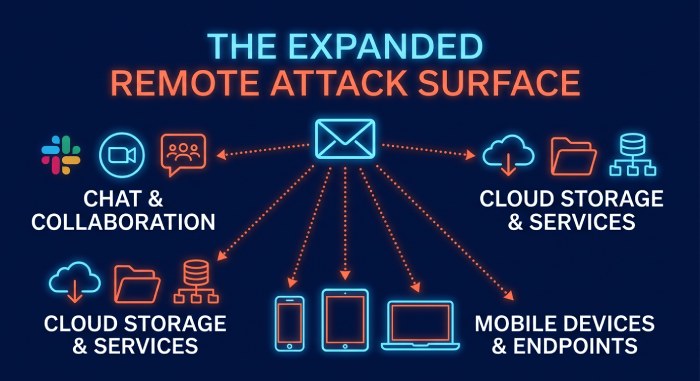
Remote work changes the assumptions behind traditional Office 365 email protection. Employees no longer access Microsoft 365 only from managed offices, corporate networks, or secured endpoints. They open email from home Wi-Fi, personal devices, mobile apps, shared workspaces, and unmanaged browsers. That shift expands the attack surface and makes email security a tenant-wide identity, endpoint, and collaboration problem—not just an inbox filtering problem.
For remote teams, email-based threats often start in Outlook but quickly move across Microsoft Teams, SharePoint, OneDrive, and connected SaaS applications. A single credential phishing message can lead to account takeovers, mailbox rule abuse, internal impersonation attacks, data exfiltration, and business email compromise. This is why modern Office 365 email protection must combine Exchange Online Protection, Microsoft Defender for Office 365, identity controls, device posture, and continuous monitoring.
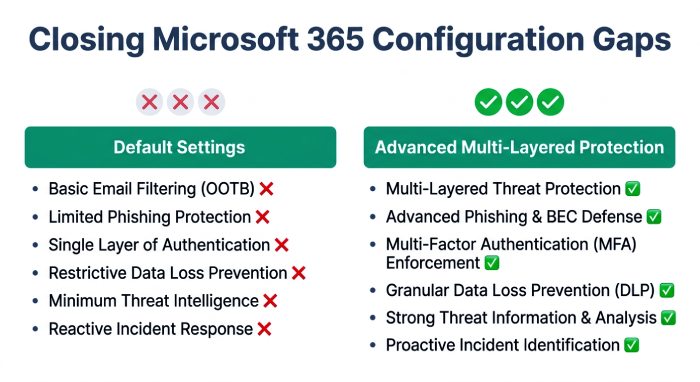
Microsoft 365 provides a strong foundation through EOP (Exchange Online Protection), Microsoft Defender for Office 365, Safe Links, Safe Attachments, anti-phishing policies, and advanced threat protection features. However, many tenants rely on defaults, assuming Microsoft 365 automatically delivers complete cloud email security. In reality, the strength of email security depends heavily on configuration, licensing, policy scope, alerting, and user readiness.
Remote Work Increases Identity-Based Email Risk
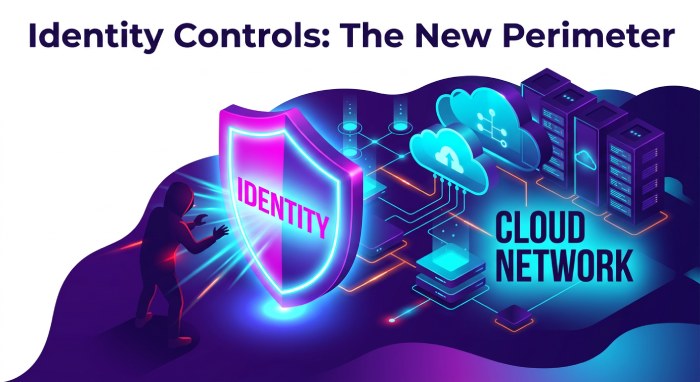
In a remote environment, identity is the new security perimeter. Attackers target credentials because they can bypass many traditional malware protection controls once they gain valid access. Credential phishing, OAuth consent abuse, legacy authentication, and session token theft can give attackers access to mailboxes even when SPAM filtering policies appear to be working.
This makes phishing protection and user and domain impersonation protection critical. Anti-phishing policies should be tuned to protect executives, finance teams, IT administrators, and external domains commonly used in supplier or customer conversations. Without this, impersonation attacks can look like legitimate business communication.
Configuration Gaps and Identity Controls
Common Security Gaps in Microsoft 365 Email Protection Settings
The most common weakness in Office 365 email protection is not the absence of tools—it is incomplete configuration. Many organizations have Microsoft 365 security policies available, but fail to enable preset security policies, review the configuration analyzer, or align settings with Microsoft’s recommended baselines in the Microsoft Trust Center, Message Center, and Product Terms.
Common gaps include weak anti-phishing policies, disabled Safe Links, limited Safe Attachments coverage, poor malware protection tuning, and insufficient advanced protection for internal mail. Some tenants also overlook Safe Links in Teams, Safe Attachments in Teams, SharePoint protection, and OneDrive protection, even though remote collaboration often happens outside email.
Another issue is licensing confusion. Defender for Office 365 Plan 1, Defender for Office 365 Plan 2, Microsoft Business Premium, Microsoft 365 E5, Microsoft 365 A5, and GCC G5 offer different levels of advanced threat protection, threat investigation, automation, and reporting. Organizations should validate subscription plans before assuming they have full Microsoft Defender for Office 365 capability.
Essential Controls: MFA, Conditional Access, and Identity-Based Email Security
Strong identity controls are essential to Office 365 email protection. Multifactor authentication should be mandatory for all users, especially administrators and high-risk departments. Conditional Access should evaluate user risk, sign-in risk, location, device compliance, and application sensitivity before granting access to Microsoft 365.
For remote teams, identity-based email security reduces the chance that credential phishing becomes a data breach. Conditional Access can block legacy authentication, require compliant devices, limit access from risky countries, and enforce stronger controls when users access Exchange Online, SharePoint, OneDrive, or Microsoft Teams.
MFA and Conditional Access Must Protect the Whole Tenant
MFA should not be limited to executives or IT. Attackers often compromise ordinary user accounts and then use them for internal phishing, invoice fraud, or lateral movement. Tenant-level service settings should be reviewed to ensure that authentication, mailbox forwarding, OAuth app consent, and external sharing policies support enterprise security and small business email protection alike.
Security Policies That Are Often Missed
Many Microsoft 365 tenants do not fully configure baseline security policies for email fraud prevention. Important controls include outbound spam alerts, mailbox forwarding restrictions, audit logging, quarantine policies, allowed sender governance, and domain authentication with SPF, DKIM, and DMARC.
SPAM filtering policies should be reviewed regularly, but they are only one part of multi-layered protection. Effective email security also requires anti-phishing policies, malware protection, ransomware protection, Safe Links, Safe Attachments, and advanced threat protection that can detect zero-day attacks and suspicious post-delivery behavior.
Advanced Protection, Monitoring, Training, and Response
Advanced Email Protections: Defender for Office 365, Anti-Phishing, Safe Links, and Safe Attachments
Microsoft Defender for Office 365 extends native Exchange Online Protection with advanced threat protection for modern email-based threats. It strengthens phishing protection, malware protection, attachment detonation, URL rewriting, campaign analysis, and post-delivery remediation. For remote organizations, Microsoft Defender for Office 365 is often the difference between basic filtering and mature cloud email security.
Safe Links helps protect users from malicious URLs by rewriting and scanning links at the time of click. This is especially important because attackers frequently weaponize links after delivery to bypass initial filtering. Safe Links should be enabled for email, Microsoft Teams, and supported Office apps. Safe Links in Teams is particularly valuable because attackers increasingly use collaboration channels for credential phishing and social engineering.
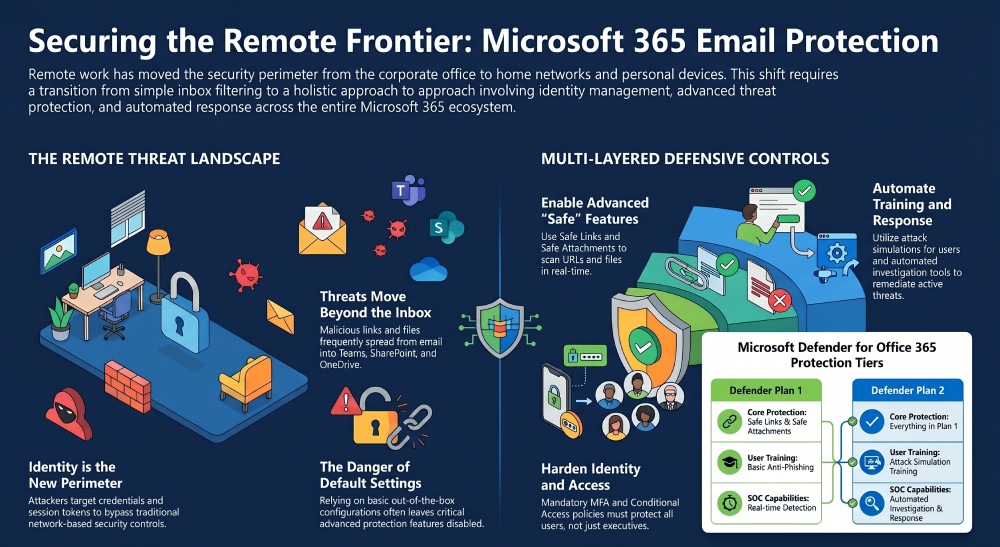
Safe Attachments provides malware protection by opening suspicious files in a sandbox before delivery. This helps defend against zero-day attacks, ransomware payloads, and weaponized documents. Safe Attachments should also extend to SharePoint, OneDrive, and Teams, where supported, because remote users often exchange files outside traditional email threads.
Anti-phishing policies should include mailbox intelligence, spoof intelligence, protected users, protected domains, and user and domain impersonation protection. Properly configured anti-phishing policies reduce executive spoofing, supplier fraud, and lookalike-domain attacks.
Defender Plan Selection and Layered Coverage
Defender for Office 365 Plan 1 provides important phishing protection, Safe Links, Safe Attachments, and anti-phishing policies. Defender for Office 365 Plan 2 adds deeper SOC capabilities, including Explorer (Threat Explorer), Threat Trackers, Attack Simulation Training, Campaign Views, Automated Investigation & Response, and more advanced threat investigation workflows.
Organizations using Microsoft 365 E5, Microsoft 365 A5, GCC G5, or Microsoft Business Premium should confirm which Microsoft Defender for Office 365 features are included and properly enabled. Third-party services such as EnGarde Cloud Email Security from Guardian Digital may also be considered for additional layered email security, especially where independent filtering, compliance, or specialized protection for sensitive information is required.
Monitoring, User Training, and Incident Response for Remote Email Security
Office 365 email protection is not complete without monitoring and response. Security teams should use real-time reports, alert policies, Explorer, Threat Trackers, and Microsoft Defender XDR to identify suspicious messages, compromised accounts, malicious campaigns, and risky user behavior. Real-time threat detection helps teams act before a phishing campaign spreads across the tenant.
The Report Message Add-In gives users a simple way to report suspicious emails directly from Outlook. This supports faster threat detection and gives administrators better visibility into phishing protection gaps. Reported messages can feed investigation workflows and help refine anti-phishing policies, Safe Links settings, Safe Attachments behavior, and malware protection rules.
Attack Simulation Training is another critical control. Remote employees need practical exposure to credential phishing, attachment-based malware, QR-code phishing, fake file-sharing alerts, and impersonation attacks. Attack simulation improves awareness while giving security teams measurable insight into risky departments, repeat clickers, and training priorities.
Incident Response and Automated Remediation
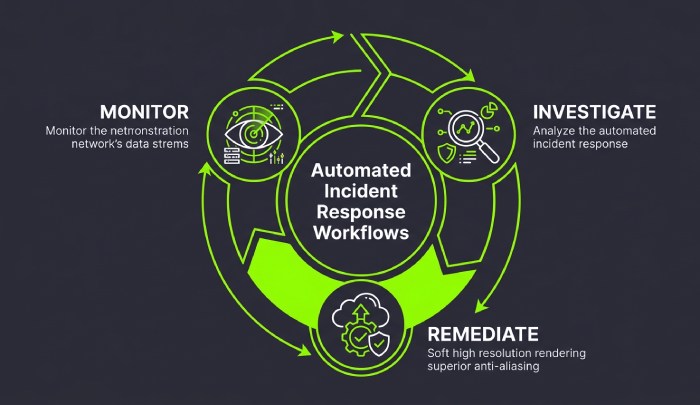
When a malicious message reaches users, speed matters. Microsoft Defender for Office 365 Plan 2 supports automated investigation & response, which can correlate alerts, investigate affected mailboxes, identify similar messages, and recommend remediation. Automated Investigation & Response reduces manual workload and strengthens security compliance during an active incident.
Response playbooks should include password reset, session revocation, mailbox rule review, OAuth app review, message purge, endpoint inspection, and legal or compliance notification when a data breach may have occurred. Threat investigation should also examine whether the same campaign affected Teams, SharePoint, OneDrive, or other Microsoft 365 workloads.
Remote email security depends on layered controls working together: Microsoft Defender for Office 365, EOP, Safe Links, Safe Attachments, anti-phishing policies, MFA, Conditional Access, monitoring, automation, and user training. When these controls are aligned, office 365 email protection becomes a proactive security program rather than a passive filtering service.
General Manager
General Manager of DuoCircle. Product strategy and commercial lead across DuoCircle's 2,000+ customer base.
LinkedIn Profile →Protect your inbox from phishing attacks
Real-time email security with 60-day free trial. No credit card required.