How To Enable Anti-Phishing On Android: Settings, Tips, And Built-In Protections

Quick Answer
Phishing attacks targeting Android devices have evolved, using tactics that reach users via text messages, email, web browsers, and even legitimate-looking apps. As smartphones increasingly store sensitive information, such as banking details and personal credentials,
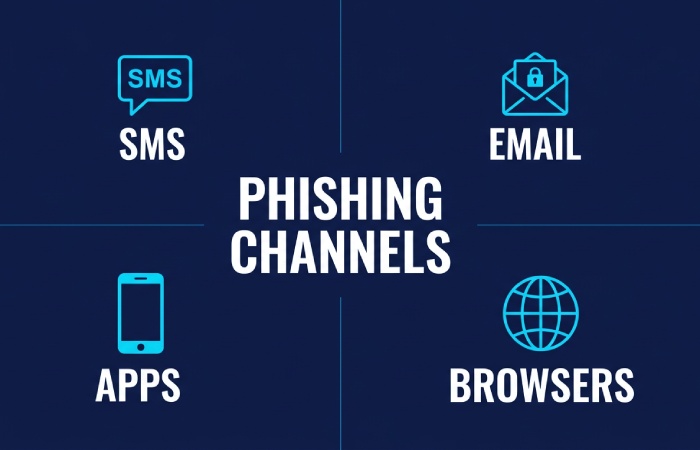
Phishing attacks targeting Android devices have evolved, using tactics that reach users via text messages, email, web browsers, and even legitimate-looking apps. As smartphones increasingly store sensitive information, such as banking details and personal credentials, cybercriminals are increasingly using strategies to manipulate feelings of trust and urgency. A single click on a dangerous link or a hasty reply to a fraudulent alert can result in account breaches, financial setbacks, or data theft.
Fortunately, Android and Google offer robust built-in defenses that aim to identify and prevent phishing threats before they inflict damage. When paired with appropriate settings, savvy browsing practices, and proactive security steps, these features greatly lessen your vulnerability to online dangers.
In this guide, you will learn the mechanics of phishing on Android, how to activate and check critical anti-phishing security settings, and ways to fortify your device with effective security advice. Whether you use your phone casually or handle sensitive data , knowing how to enable and utilize these protections is essential for navigating today’s constantly changing threat environment.
Understanding Android phishing: common attack channels and red flags
On Android, phishing attacks try to trick you into revealing passwords,
2FA codes
, or payment details by ** imitating trusted brands** . Attackers exploit multiple channels:
- SMS/RCS (smishing) :
Spoofed delivery notices, bank alerts, or “package held” messages often hide malicious sites behind shortened links
. Treat any URL shortener with caution and perform a quick URL scan before tapping.
-
Email : Fake invoices and “account locked” notices leverage urgency. Be wary of login prompts delivered via embedded buttons; use a website checker or web scanner to validate the destination.
-
Browsers : Pop-ups and redirects can load phishing scam websites that look legitimate. Enhanced safe browsing features and a site blocker help block harmful websites and malicious sites before they load.
-
Apps : Rogue Android apps and overlays abuse permissions (including Accessibility Service) to capture credentials. Review permissions and avoid installing from outside Google Play.
Red flags include mismatched domains, odd URL redirects, requests for QR code “verification,” and payment demands through unconventional methods . Never scan links without considering context - use a trusted link scanner or link checker first, especially if the message involves security threats to your account. For QR code security, prefer your device’s built-in camera or Google Lens rather than unknown QR scanner apps, and preview the link for link scanning results. Good anti-phishing habits are foundational to mobile security and online security.
Built-in defenses on Android and Google services: Play Protect, Safe Browsing, Gmail, and Messages filters
Android ships with meaningful phishing protection if you turn it on and keep it updated:
-
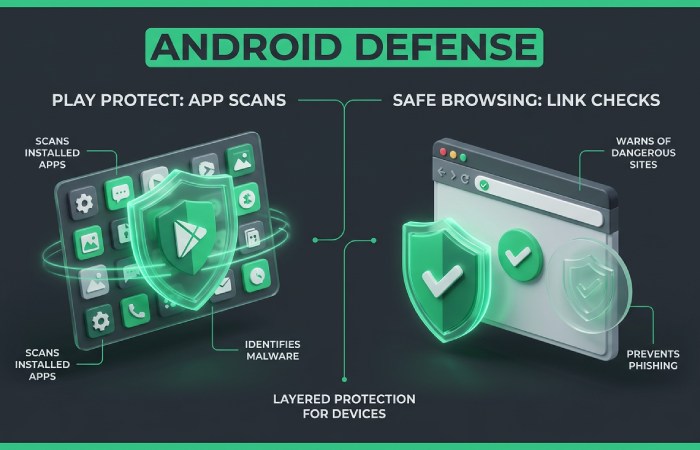
Google Play Protect : Scans apps from the Play Store and third-party sources for malware detection and other security threats. Its threat detection is designed for real-time protection against harmful behavior by an Android app. Enable “Scan apps with Play Protect” for stronger mobile security.
-
Google Safe Browsing : In Chrome, Samsung Internet, and Firefox (via comparable settings), Safe Browsing warns about malicious sites, deceptive forms, and dangerous downloads. Think of it as a built-in website checker and link scanner that improves browser security and helps you surf safely.
-
Gmail : Uses server-side phishing protection and attachment scanning. If a message includes a suspicious link, Gmail can trigger a warning interstitial - essentially an automatic URL scan and website virus scanner check.
-
Google Messages : Spam protection flags suspicious texts and links. Combined with Safe Browsing and Play Protect, you get layered online security.
These native layers don’t eliminate risk, but they reduce exposure to website scam domains and phishing attacks
. They also work with Google Account security alerts to notify you about unusual sign-ins - key for data privacy and online privacy.
Step-by-step: Enable and verify anti-phishing settings
Follow these steps to harden your device with proven
anti-phishing controls
. You’ll activate safe browsing, spam filters , and account alerts, and verify that phishing protection is working across apps and browsers .
Google Play Protect and account alerts
-
Turn on Play Protect
Enable Scan apps with Play Protect and improve harmful app detection.
In the Play Store app, tap your profile > Play Protect > Scan to run an on‑demand malware detection check.
-
Verify Google Account alerts and Safe Browsing for your account
-
Ensure 2-Step Verification is on and Security alerts are enabled.
If available for your account, enable Enhanced Safe Browsing for extra threat detection and phishing protection across Google services. This adds stronger link scanning and can function as a cross-service link checker.
-
Keep core services updated
Safe Browsing in Chrome, Firefox, and Samsung Internet
Safe Browsing acts like a background website checker and web scanner, warning you about malicious sites and unsafe downloads.
Enable and verify safe browsing protections
-
Chrome : Menu (⋮) > Settings > Privacy and security > Safe Browsing > choose Enhanced protection (strongest) or Standard protection. Enhanced protection improves URL scan speed, link scanner accuracy, and fraud protection by sharing suspicious URLs for improved threat detection .
-
Firefox for Android : Menu (⋮) > Settings > Privacy & Security > enable Deceptive content and dangerous software protection, including Warn you about dangerous and deceptive sites and Block dangerous downloads. This boosts phishing protection and helps block harmful websites.
-
Samsung Internet : Menu (≡) > Settings > Privacy and security > Safe browsing > On. Consider enabling content blockers or a site blocker add-on for extra browser security and safe surf controls, including an adult site blocker if family filtering is needed.
Tip: Even in incognito mode, phishing sites can still trick you; incognito mode does not make you immune to phishing attacks . Keep Safe Browsing on in all modes.
SMS and messaging protections
- Google Messages : Open Messages > profile photo > Messages settings > Spam protection > Enable.
This helps scan links and flag phishing scam websites shared via text
.
-
Gmail on Android : Gmail applies server-side phishing protection. In Settings > your account > Images, consider Ask before displaying external images to prevent tracking pixels and improve privacy.
-
Other messaging apps : Ensure in-app link scanner features are enabled where offered, or use a reputable security tool that provides an overlay link checker. Some solutions use the
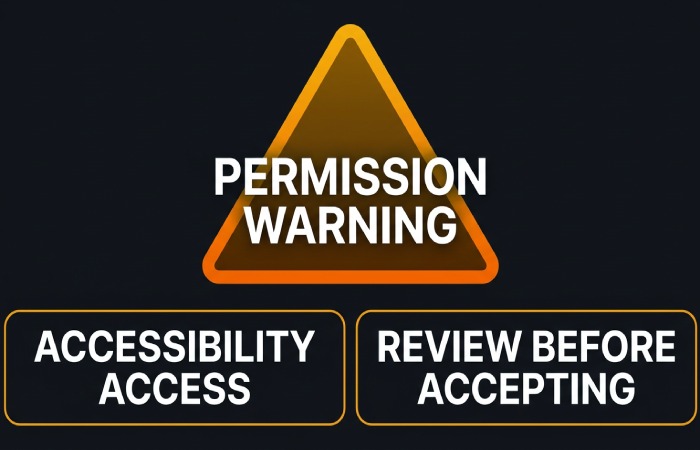
Accessibility Service
to pop up warnings over links in any app; treat these with care and only grant accessibility service access to trusted vendors.
Pro tips for staying safe: link hygiene, app sources and permissions, password manager, 2-step verification, updates, Private DNS
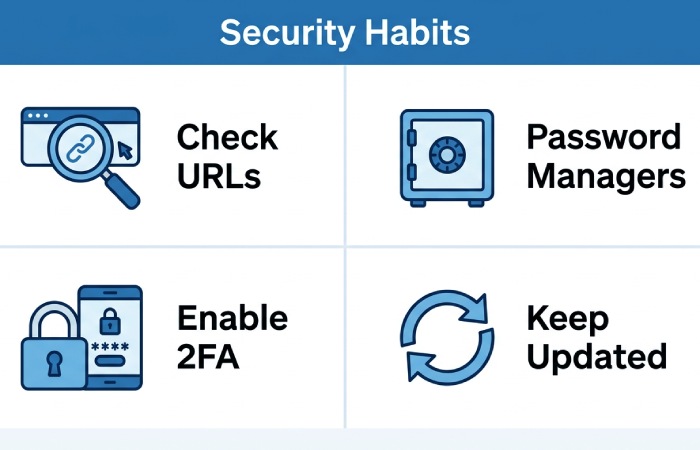
- Practice link hygiene :
If you clicked a suspicious link: immediate actions, scanning, revoking access, reporting, and recovery
-
Disconnect and contain
. Don’t install any prompted Android app. Avoid interacting further, even in incognito mode.
-
Clear and scan
website data
for the affected browser. Re-enable safe browsing if disabled.
-
Run Play Protect : Play Store > profile > Play Protect > Scan.
-
Optional : Use a trusted mobile security tool (e.g., F-Secure or Trend Micro) to perform an on-device malware detection scan. For the URL, use a website checker or web scanner to perform an independent URL scan; many services function as a website virus scanner for links and files.
-
Secure accounts and revoke access
Turn on or re-secure 2-Step Verification; if you use Aegis Authenticator , ensure your vault is safe, and back-up codes are secure.
- Google Account : Google app > Manage your Google Account > Security > Review security activity, Manage devices, and Third-party access. Revoke OAuth access that looks unfamiliar (including to Drive, Gmail, or Site Manager tools you don’t recognize). This is critical for data privacy and online privacy.
-
Check payments and enable fraud protection
-
Report the incident
In Google Messages, mark texts as spam and phishing. In Gmail, report phishing directly from the email menu.
If the attack came through a Play Store listing, report the Android app to Google Play support.
-
Rebuild trust cautiously
Consider adding a DNS provider that can block harmful websites and improve safe surfing habits.
For organizations, notify IT so they can warn others and update filters.
By activating built-in anti-phishing controls, maintaining safe browsing in your preferred browsers, and using a reputable link scanner or website checker when in doubt, you measurably reduce security threats on Android
. Layered phishing protection
- spanning Play Protect,
account alerts
, Private DNS filtering , and cautious link hygiene - delivers durable mobile security and resilient online security against modern website scam tactics.
Topics
General Manager
General Manager of DuoCircle. Product strategy and commercial lead across DuoCircle's 2,000+ customer base.
LinkedIn Profile →Protect your inbox from phishing attacks
Real-time email security with 60-day free trial. No credit card required.