Email Phishing Prevention Checklist: Spotting Red Flags In Your Inbox

Quick Answer
Phishing schemes are constantly advancing, with attackers using ever-more persuasive methods to extract confidential information and jeopardize accounts. These tactics range from forged login screens to harmful attachments and urgent requests for payments, all designed to catch users unaware. This guide outlines the typical indicators of phishing and offers straightforward steps to help you recognize dubious emails, safeguard your personal.
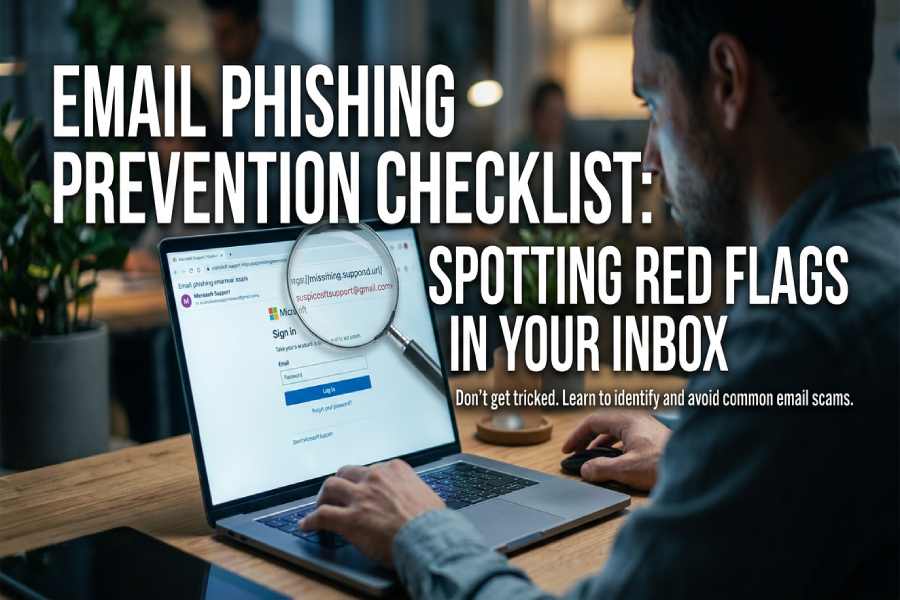
Phishing schemes are constantly advancing, with attackers using ever-more persuasive methods to extract confidential information and jeopardize accounts. These tactics range from forged login screens to harmful attachments and urgent requests for payments, all designed to catch users unaware. This guide outlines the typical indicators of phishing and offers straightforward steps to help you recognize dubious emails, safeguard your personal data, and enhance your email security measures.
Quick checklist for instant phishing prevention
- Pause on any phishing email or phishing message that creates a false sense of urgency.
- Inspect sender details and domains for mismatches and domain name spoofing.
- Hover over link previews and avoid suspicious links to any fake website.
- Never enter personal information from an email; navigate directly to the site.
- Treat unexpected attachments as a security risk and verify offline.
- Report phishing and delete suspicious email to protect account protection and others’ email security.
Why phishing works: common attack types and how they trick you
Credential harvesting via fake website
Cybercriminals often send a phishing message that impersonates a brand and routes you to a fake website designed to steal personal information. The page looks real, but every click advances a phishing attack. This tactic exploits trust and hurried behavior; one mistyped URL and identity theft can follow.
Malware and ransomware through email attachments
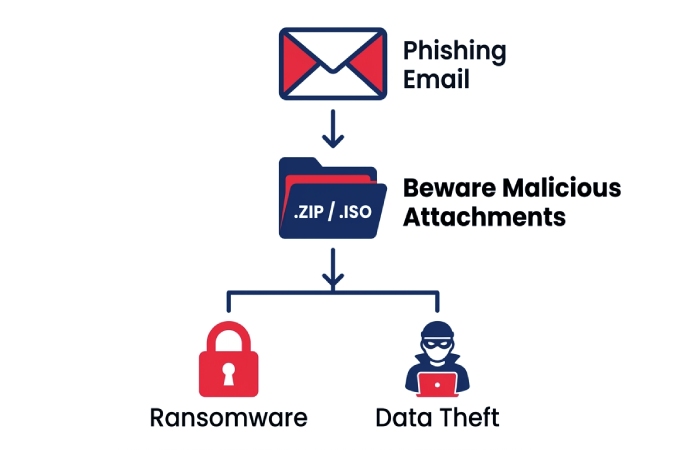
Fraudulent emails may carry malicious email attachments or unexpected attachments (e.g., .zip, .html, .iso). Opening them launches malware, enabling data theft, account takeover, or ransomware. This is classic social engineering: a phishing email claims invoices, resumes, or deliveries to nudge you into risky clicks.
Business Email Compromise (BEC) and payment fraud
BEC relies on relationship abuse and a trusted advisor pretext. Attackers hijack or spoof executives and suppliers, then issue an urgent call to action: wire transfers, gift cards, or W‑9s. The phishing attack thrives on speed and secrecy; simple out-of-band checks would stop most losses.
Visual and textual red flags inside emails
Subject lines that pressure and panic
Look for a false sense of urgency: “Authentication Failed,” “Account Locked,” “Final Notice.” Phishing prevention starts by slowing down when subject lines push fear, rewards, or threats to account protection.
Tone, greetings, and mistakes
Generic greetings (“Dear user”), odd phrasing, and spelling and grammar errors are classic tells in a phishing email. Even skilled cybercriminals slip when localizing content or copying templates.
Branding and sender inconsistencies
Logos and footers can be copied, but mismatched email domains and reply-to addresses betray fraudulent emails. If the branding says Microsoft 365 or Apple but the message originates from micros0ft.com, rnicrosoft.com, or microsoftsupport.ru, assume a phishing message and verify first.
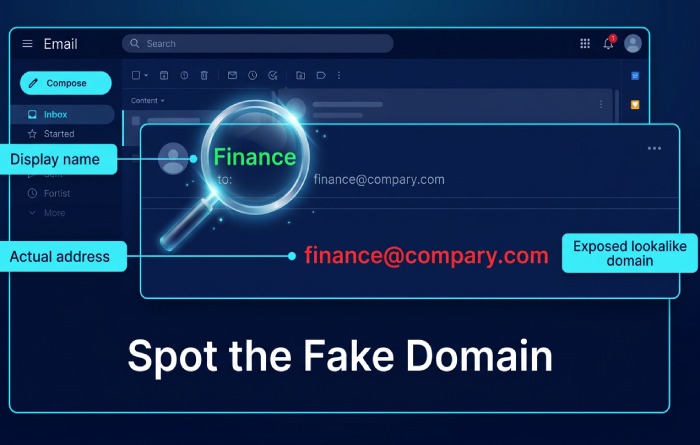
Verify the sender and domain (display-name spoofing, lookalike URLs, reply-to mismatches, authentication cues)
Display-name spoofing and domain name spoofing
Attackers rename “From” fields to read “Microsoft Support” or “Finance.” Always expand headers to confirm sender identity and analyze the real domain. Domain name spoofing and lookalike domains are engineered to be scanned, not read.
Lookalike URLs and reply-to mismatches
A link to login-microsoft-secure[.]com is not Microsoft. Hover over link targets to reveal the destination, watch for link shorteners, and check whether reply-to differs from the visible sender. Reply-to mismatches frequently funnel responses to attacker-controlled inboxes like Gmail.com.
Authentication cues and platform signals
Modern email security exposes anomalies. In Outlook, pay attention to the Outlook banner, external sender tags, and warnings when authentication failed. Message verification signals, such as DKIM, SPF, and DMARC status, help you spot tampering.
Outlook banner and external sender labels
If you see External or unusual location indicators, treat the note as a potential security risk. Many organizations prepend [External] to help user awareness.
Authentication failed warnings
Headers and banners that say “authentication failed” or “be careful with this message” are strong anti-phishing hints to stop and verify.
Check links and attachments safely (hover to preview, URL patterns, file types, QR codes, link shorteners)
Hover to preview and avoid suspicious links
Always hover over link text before clicking. If a button says “View in OneDrive” but the preview shows an unrelated host, it’s a phishing attack. Suspicious links often embed tracking or redirect chains to a fake website harvesting personal information.
URL patterns, shorteners, and QR codes
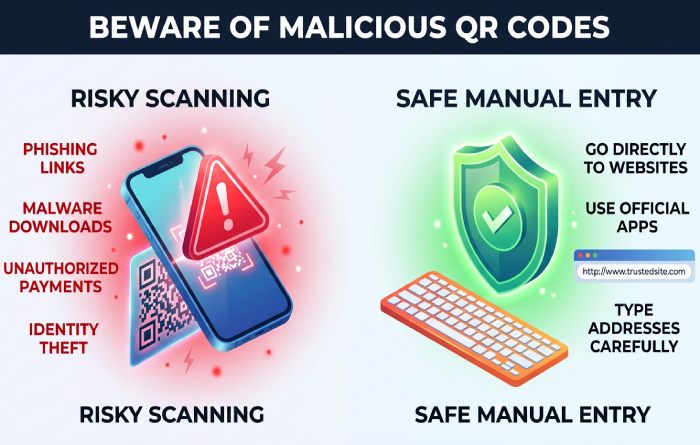
Link shorteners obscure destinations; scan them with a sandbox if you must. Attackers increasingly use QR codes to push you to mobile sites where previewing is harder. Treat QR codes in a phishing email as high risk, and type known URLs manually.
File types and cloud-sharing lures
Be wary of .html, .iso, .img, .lnk, and macro-enabled Office files. Email attachments claiming to be shared via OneDrive, OneNote, or Office but prompting downloads directly are suspect. Open genuine files from your cloud portal, not from an email button.
What to do next: confirm out of band, report and isolate, and build long-term defenses (MFA, updates, training)
Confirm sender identity out of band
Call the person, use verified phone numbers, or send a fresh chat in Microsoft Teams. Don’t reply within the same thread. Teams messages, voice calls, or a hallway conversation can break social engineering loops and confirm sender identity.
Report phishing, isolate, and clean up
Use built-in “report phishing” add-ins in Outlook or Microsoft 365, or follow your organization’s report a scam workflow. Then delete suspicious email, disconnect affected devices from the network, and notify your IT pro or administrator. Document suspicious links and any personal information you may have entered.
Build long-term defenses: MFA, updates, training
- Enable MFA and conditional access for strong account protection.
- Keep Windows, Office, and browsers patched; apply security best practices.
- Run anti-phishing and advanced threat protection policies in Microsoft 365.
Anti-phishing and Advanced Threat Protection in Microsoft 365
Configure Defender for Office 365 Safe Links/Safe Attachments, impersonation protection, and user submission workflows. Advanced Threat Protection helps detonate links and files before delivery and flags authentication failed anomalies.
Role of the IT pro and administrator
Your administrator should tune detections, monitor Azure AD sign-ins, run simulated campaigns, and track user awareness metrics. An IT pro can also integrate SIEM/SOAR and automate quarantine and response.
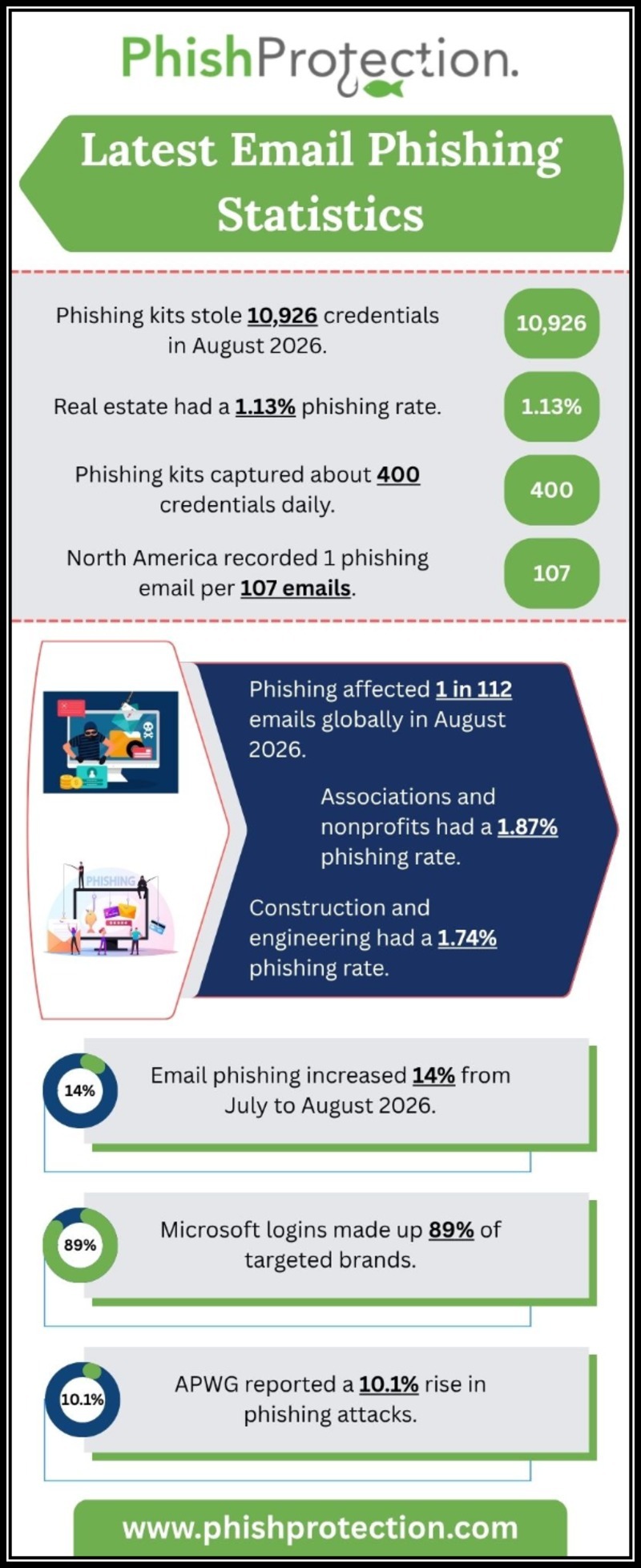
Common impersonations and lookalike domain examples
Popular brands attackers abuse
Cybercriminals frequently imitate Microsoft, Apple, and Gmail.com notices, plus Microsoft Store order confirmations. They also impersonate Windows, Office, Microsoft 365, Azure, OneDrive, OneNote, Surface, Surface Hub, Xbox, HoloLens, Visual Studio, Teams, and Copilot/Microsoft Copilot alerts to drive clicks.
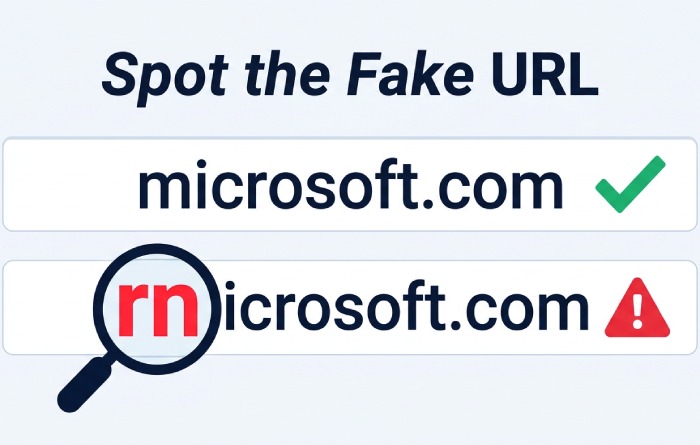
Lookalike and foreign-domain traps
Watch for micros0ft.com (zero), rnicrosoft.com (rn), and microsoftsupport.ru. These lead to a fake website engineered to steal personal information and cause identity theft. When in doubt, navigate directly, don’t follow suspicious links.
Message verification across apps and devices
Outlook, Teams, and Windows notifications
Outlook surfaces external sender banners and reporting buttons; Microsoft Teams notifications should link back to the Teams client, not third-party hosts. On Windows, treat pop-ups prompting urgent credentials as suspect, especially outside normal workflows.
Copilot and enterprise tools
If a phishing message references AI features, Copilot or Microsoft Copilot, verify via your tenant portal instead of the email. Consult Microsoft 365 admin centers and the Tech Community for guidance, and escalate to a trusted advisor when needed.
Practical examples that tie it all together
Red-flag mashup
An email claims “Authentication Failed, Update Your Microsoft 365 Password Now,” from “Security Team” <alerts@*micros0ft.com*>, with a button to “Fix Account.” Hover over link reveals a non-Microsoft domain, and the message has spelling and grammar errors. This is textbook phishing prevention: don’t click, report a scam, and verify out of band.
Supplier invoice switch
A vendor “updates” banking details via a reply-to mismatch and external sender tag. There’s an urgent call to action to pay today. Apply phishing protection: confirm via phone, escalate to finance, and use email security tools to block the sender.
Policy and training tips you can apply today
Strengthen controls and culture
- Enforce least privilege and mail flow rules; quarantine messages with mismatched email domains.
- Provide user awareness micro-trainings highlighting suspicious links, generic greetings, and social engineering ploys.
- Maintain an incident playbook: report phishing paths, who to contact, and how to isolate endpoints.
- Encourage employees to quickly report a scam; faster triage reduces blast radius.
By applying these practices consistently, you’ll elevate email security, blunt cybercriminals’ tactics, and reduce the chance that a phishing email or phishing message drives you to a fake website or divulges personal information, minimizing identity theft and the impact of any phishing attack.
General Manager
General Manager of DuoCircle. Product strategy and commercial lead across DuoCircle's 2,000+ customer base.
LinkedIn Profile →Protect your inbox from phishing attacks
Real-time email security with 60-day free trial. No credit card required.