Calendar Invite Phishing: How Cybercriminals Turn Meeting Requests Into Credential Traps

Quick Answer
Calendar invite phishing is a cyberattack that uses fake meeting requests to trick users into clicking malicious links or sharing credentials. Learn how to spot suspicious invites and protect accounts from credential theft.
Calendar invitations are intended to streamline the scheduling process, but cybercriminals are increasingly exploiting this common tool as a means of phishing. By masking harmful events as legitimate meetings, security updates, billing alerts, or support sessions, attackers can effectively insert convincing scams directly into a victim’s calendar. These invites can include phishing links, fraudulent support numbers, harmful attachments, or pages designed to steal credentials.
Because calendar alerts tend to seem more credible than random emails, users may be more inclined to accept them without scrutiny. It’s crucial to understand how phishing through calendar invites operates, to recognize the warning signs, and to implement strategies that individuals and organizations can use to thwart these attacks and prevent the theft of credentials and account breaches.
What Calendar Invite Phishing Is and Why It Works
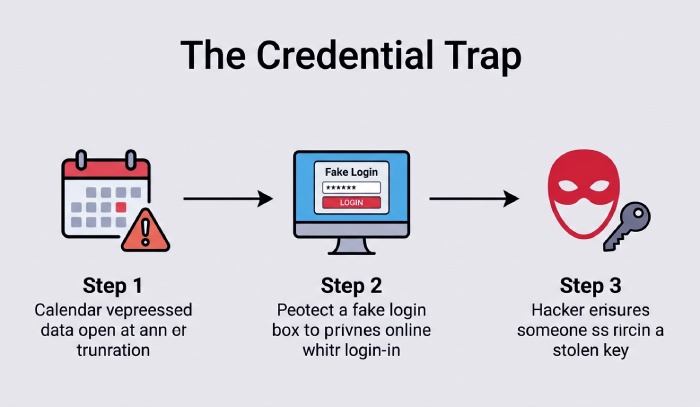
Calendar invite phishing is a social engineering technique in which attackers send malicious meeting invitations that appear inside a user’s trusted Calendar app. Instead of relying only on suspicious emails, cybercriminals create calendar entries that look like legitimate meetings, payment alerts, security warnings, billing issues, or support appointments. These fake calendar invites may contain links to credential harvesting pages, phone numbers for a tech support scam, or prompts to download files.
The reason calendar invite phishing works is simple: people trust their calendars. A meeting request feels more routine than an unexpected email. In Google Calendar, Outlook Calendar, Gmail Calendar, Android Calendar, Mac Calendar, and iPhone Calendar, invitations can appear as normal calendar entries and may sync across devices, including an iPhone, iPad, Mac, Android phone, or desktop Outlook client. That ability to sync across devices gives a phishing scam more visibility than a single email message.
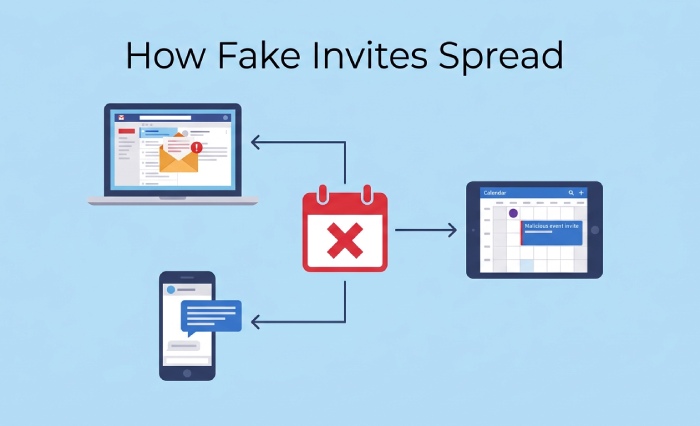
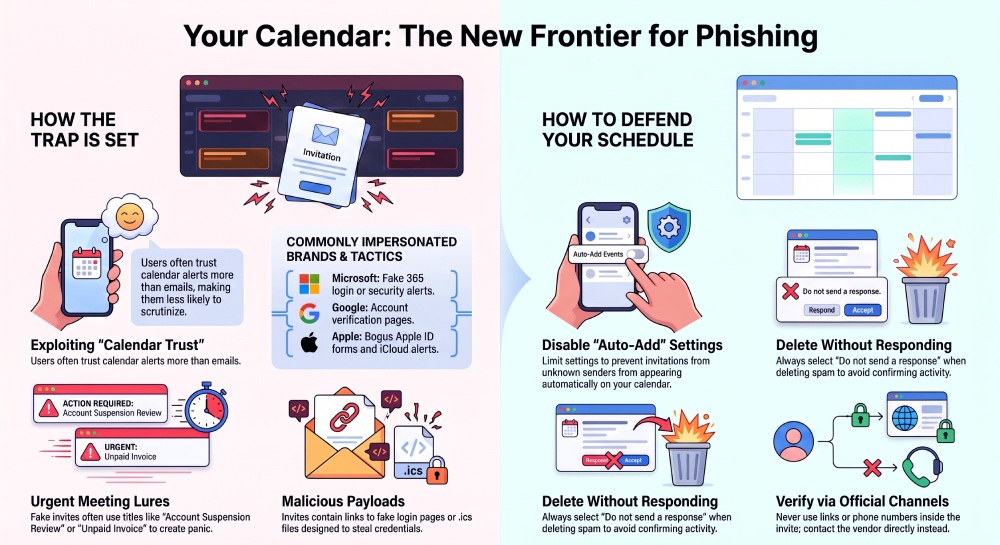
Attackers also exploit auto-adding events and auto‑add events features. If calendar settings allow invitations from an unknown sender to appear automatically, unsolicited events may show up without meaningful user action. For phishing purposes, this creates a powerful delivery channel: the attacker gets a persistent reminder on the victim’s schedule, often with notifications that repeat until the user interacts with the scam meeting.
Common Tactics: Fake Meetings, Malicious Links, and Credential Harvesting Pages
Fake meetings and urgent meeting lures
Fake calendar invites often use urgency. A victim may see an urgent meeting titled “Account Suspension Review,” “Payroll Verification,” “Microsoft Security Alert,” “Geek Squad Renewal,” or “Unpaid Invoice.” Some impersonate Microsoft, Apple, Google Calendar, Gmail, or Outlook support teams. Others claim to involve Remote Monitoring and Management software or official support from a vendor.
These fake calendar invites are designed for phishing purposes: to make users panic, click, and disclose information. A phishing scam may claim there are billing issues, suspicious logins, or failed payments. Some even ask for banking details or direct the victim to call a fake support number. Malwarebytes and the Malwarebytes Blog have repeatedly documented how scammers adapt familiar brands and support scenarios to make calendar invite phishing feel credible.
Malicious links and credential harvesting pages
The most common payload is a link. A calendar description may point to a fake Microsoft 365 login, a Google Account verification page, a bogus Apple ID form, or a fake corporate single sign-on portal. These malicious domains can be newly registered, hidden behind URL shorteners, or routed through compromised websites. A strong web protection layer can help block known malicious domains before the user reaches the phishing page.
Credential harvesting pages are built to capture usernames, passwords, one-time codes, and sometimes multi-factor authentication prompts. If the user enters credentials, attackers may achieve account compromise and use the mailbox or calendar account to send more fake calendar invites. That is how calendar invite phishing spreads internally across shared calendars, resource calendars, and external contacts.
Calendar files, email attachments, and recurring event abuse
Attackers may also send .ics files as email attachments. Because calendar files are commonly used for legitimate scheduling, users may not treat them like risky email attachments. However, email attachments that create calendar entries can carry malicious links in the event body, notes, location field, or organizer details. For phishing purposes, the attachment becomes a way to plant reminders directly into the calendar.
Some phishing scam campaigns create recurring events so the alert keeps appearing. Others use event settings to hide details, add multiple reminders, or make the invitation look like an automated notice. Security researchers such as Pieter Arntz, a Microsoft MVP associated with Malwarebytes, have noted that scammers often exploit everyday workflows because users are less suspicious of routine productivity tools.
Why “Do not send a response” matters
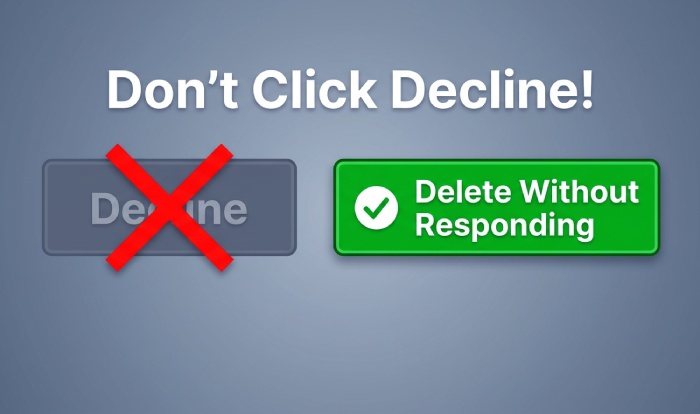
When removing suspicious calendar entries, avoid clicking Accept, Decline, or Maybe if the platform may notify the organizer. Choose “Do not send a response” where available. Sending a response can confirm that the account is active, which may encourage more fake calendar invites. If possible, report the sender, block the sender, and then delete event entries safely.
Why Calendar Platforms Are Attractive Targets for Cybercriminals
Trust, automation, and cross-device visibility
Calendar systems are attractive because they combine trust, automation, and persistence. Email filters often scrutinize messages, links, and email attachments, but calendar platforms may focus on scheduling convenience. Auto-processing rules can accept, display, or notify users about invitations with minimal friction. In business environments, add invitations features may be enabled to keep teams efficient, but the same convenience can help attackers.
Another advantage for criminals is that calendar entries sync across devices. A single scam meeting can appear on a Windows laptop, Android Calendar, iPhone Calendar, Mac Calendar, and iPad. When calendar entries sync across devices, the victim may receive multiple notifications, making the phishing scam harder to ignore. Synchronization issues can also make removal confusing: a user may delete event data on one device, only to see it reappear from another synced account.
Calendar permissions are also valuable. In Microsoft Outlook, Google Calendar, and Apple Calendar, organizations may use shared calendars and resource calendars for rooms, teams, and departments. If an attacker gains access or abuses public access, anonymous access, or overly permissive sharing, they may plant calendar entries across many users. Security teams should restrict permissions, review Calendar permissions regularly, remove access that is no longer needed, and avoid unnecessary public access.
Warning Signs of a Suspicious Calendar Invite
Suspicious calendar invite phishing often has recognizable signs:
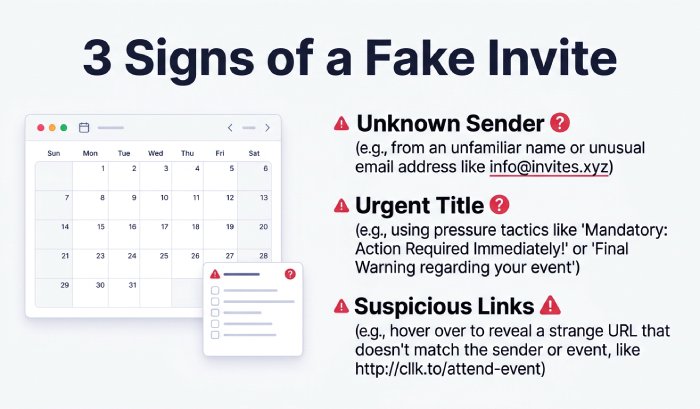
- The invitation comes from an unknown sender or an external account pretending to be internal.
- The title creates pressure, such as urgent meeting, unpaid invoice, billing issues, account closure, or legal notice.
- The description contains a login link, phone number, cryptocurrency demand, or request for banking details.
- The message claims to be from Microsoft, Apple, Google, Geek Squad, or official support but uses unofficial domains.
- The event asks you to open email attachments, download a file, or visit a strange URL.
- The calendar entries appear repeatedly, at odd hours, or across multiple devices without your approval.
- The event seems unrelated to your job, purchases, subscriptions, or recent activity.
- The sender uses vague language like “security team,” “admin office,” or “support desk” without verifiable context.
Treat these as indicators of a phishing scam, especially when the event pushes you outside Official channels. If in doubt, do not use the links or phone numbers inside the invite. Go directly to the vendor’s website, internal help desk, or known support portal. Tools such as Malwarebytes Scam Guard, PhishProtection, real-time anti-malware, and web protection can provide another layer of defense against malicious domains used for phishing purposes.
How Individuals and Organizations Can Prevent Calendar Invite Phishing
Practical steps to remove calendar spam and block future spam
To prevent calendar spam, start with platform settings. In Google Calendar, review Settings and look for “Add invitations to my calendar.” Limit auto-adding events so invitations from unknown senders do not automatically appear. In Outlook Calendar, review event settings, auto-processing behavior, and mail flow rules that affect calendar invitations. In Apple environments, open the Apple menu, System Settings, Privacy & Security, Accounts, and Calendar permissions to check which apps can access calendars. On iPhone Calendar and Mac Calendar, inspect Subscribed Calendars and subscribed URLs; if you see a suspicious subscription, unsubscribe calendar sources you do not recognize.
To remove calendar spam safely, do not interact with the invite as if it were legitimate. Use delete event or the platform’s spam/report option. Where available, select “Do not send a response.” Then report the sender and block the sender to help block future spam. If fake calendar invites came from a subscribed calendar, remove calendar spam by deleting the subscription, not just one event. This is essential because subscribed URLs can keep repopulating calendar entries.
Individuals should also:
- Enable Multi-factor authentication for Google, Microsoft, Apple, and corporate accounts.
- Use a password manager to avoid entering credentials on fake pages.
- Keep Android, iPhone, iPad, Mac, Outlook, Gmail, and browser software updated.
- Use real-time anti-malware and web protection to detect malicious domains.
- Verify urgent meeting requests through Official channels before clicking.
- Avoid opening suspicious email attachments that create calendar entries.
Organizations should prevent calendar spam with administrative controls. Restrict permissions on shared calendars and resource calendars, disable anonymous access where it is unnecessary, and remove access for former employees, vendors, or unused service accounts. Security teams should monitor for waves of unsolicited events, newly created external calendar entries, and suspicious organizer domains. Microsoft 365 and Google Workspace administrators can tune calendar settings, event settings, and settings and privacy controls to reduce risky auto-processing.
Finally, train users that calendar invite phishing is not “just calendar spam.” It is a phishing scam delivery method. The right response is to remove calendar spam, report the sender, block future spam, and verify any request involving credentials, billing issues, tech support, or banking details through trusted channels. By tightening calendar settings and teaching users how fake calendar invites work, organizations can prevent calendar spam before it becomes account compromise.
General Manager
General Manager of DuoCircle. Product strategy and commercial lead across DuoCircle's 2,000+ customer base.
LinkedIn Profile →Protect your inbox from phishing attacks
Real-time email security with 60-day free trial. No credit card required.